Roles & Permissions
A role is a named set of permissions. Every user is assigned one, and it decides what they can view, create, edit and delete.
Roles are what make the same system usable by a cashier and a chief accountant without either seeing the other's work.
The roles list
Roles & Permissions → Roles
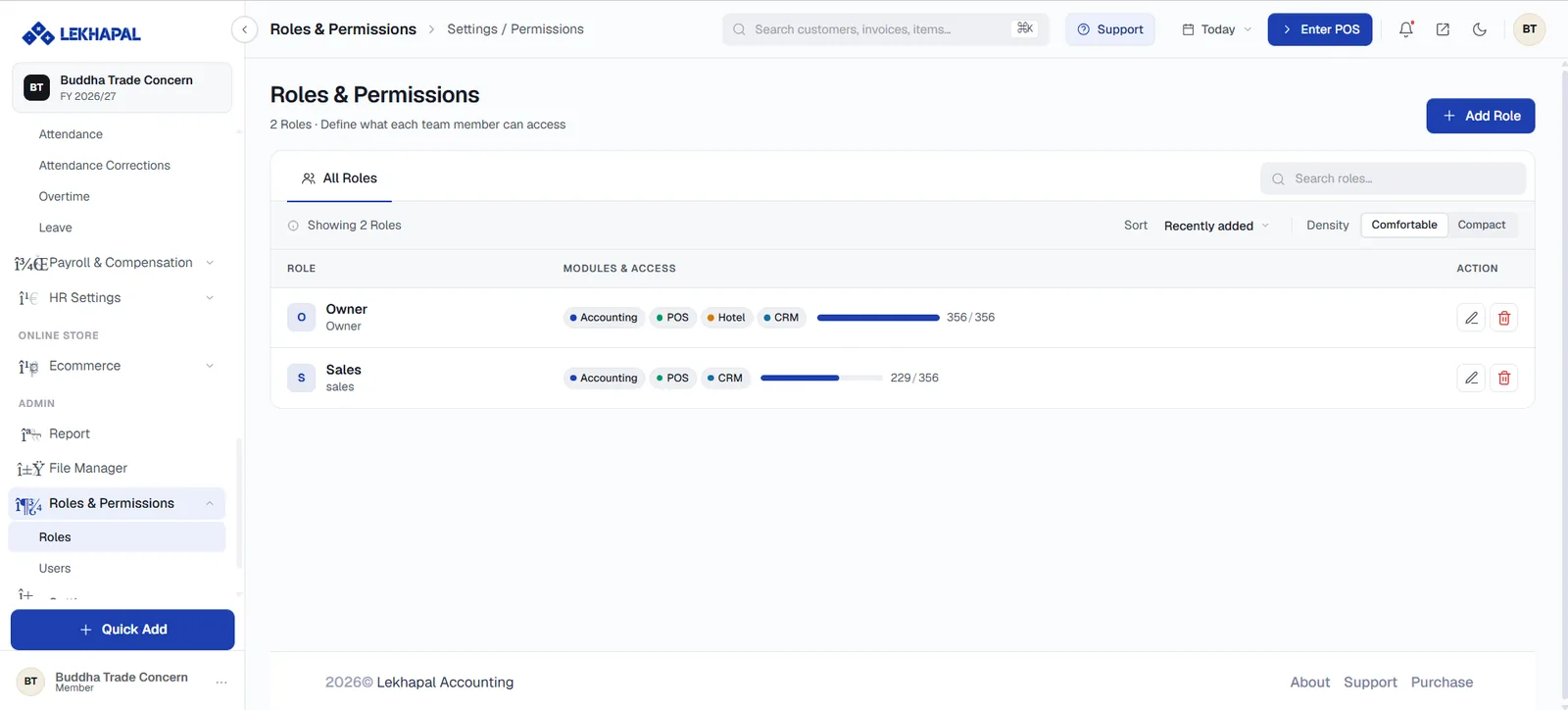
Each role shows:
| Column | Contents |
|---|---|
| Role | Name and description |
| Modules & Access | Coloured chips for each enabled module, plus a progress bar showing permissions granted out of the total — for example 229 / 356 |
| Action | Edit or delete |
The fraction is a quick way to compare roles: an Owner at 356/356 has everything; a Sales role at 229/356 does not.
Create a role
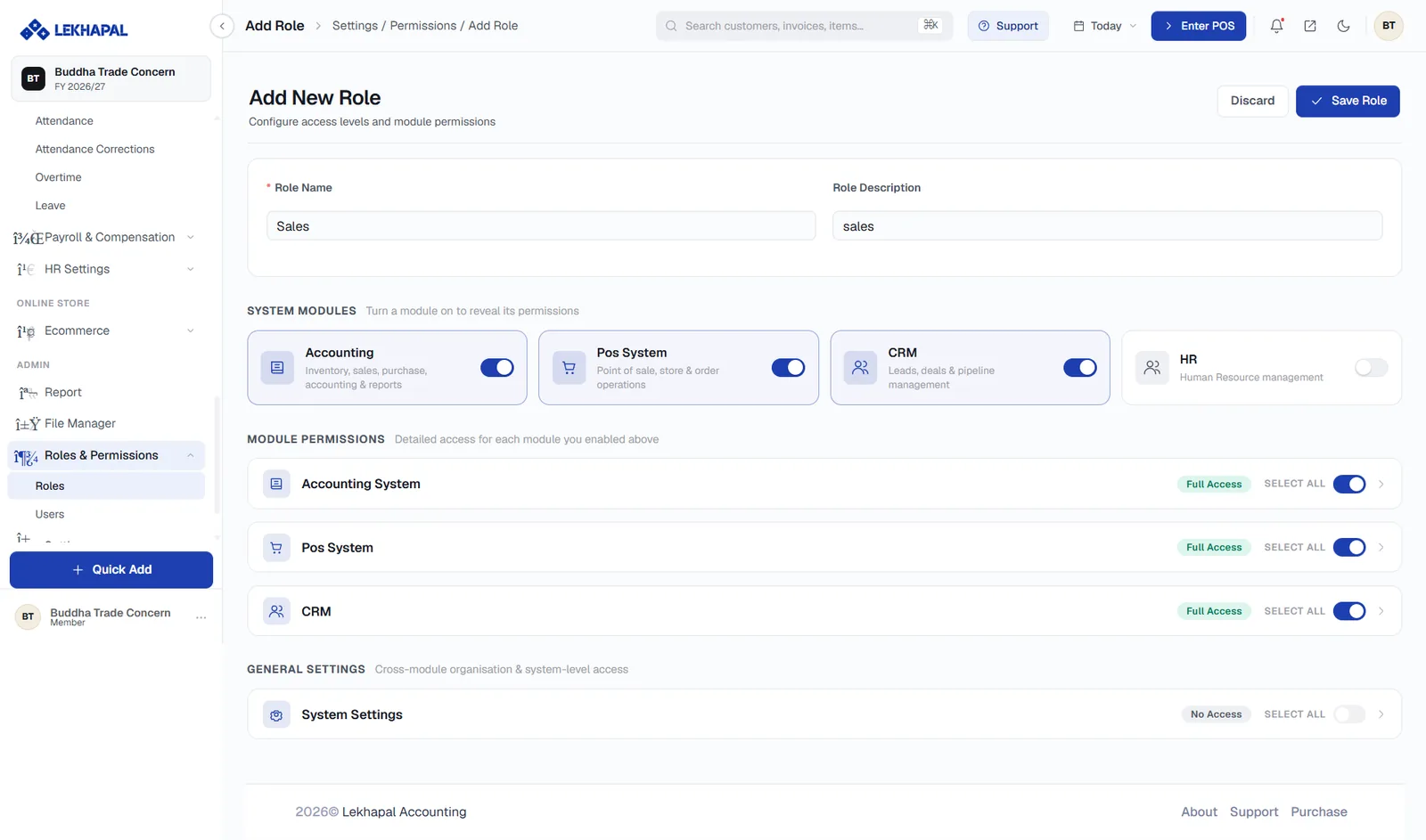
Click + Add Role.
Enter a Role Name and a Role Description.
Under System Modules, turn on the modules this role should reach. Turning a module on reveals its permissions below.
Module Covers Accounting Inventory, sales, purchase, accounting and reports Pos System Point of sale, store and order operations CRM Leads, deals and pipeline management HR Human resource management Under Module Permissions, expand each enabled module with the › arrow and set its detailed permissions. SELECT ALL grants everything in that module; the badge on the right shows Full Access or No Access at a glance.
Under General Settings, set System Settings access — cross-module organisation and system-level access. Leave this off for everyday roles.
Click Save Role.
System Settings is the powerful one
System Settings controls the business profile, tax rates, printing templates and warehouses. Grant it only to people who should be able to change how the whole business is configured.
Example roles
| Role | Access |
|---|---|
| Admin / Owner | Full access to all modules |
| Accountant | Accounting and reports |
| Cashier | Billing and POS only |
| Manager | Reports and operations |
Each user is assigned the role that matches their job.
Next
→ Users