Lekhapal User Manual
Get Started
  • Selling

    • Point of Sale
    • Sales
    • Loyalty
    • Online Store
  • Buying & Books

    • Purchase
    • Accounting
  • Operations

    • Inventory
    • CRM
    • Human Resources
Reports
Administration
  • Sign in
  • Create an account
  • Website
  • English
  • नेपाली
Get Started
  • Selling

    • Point of Sale
    • Sales
    • Loyalty
    • Online Store
  • Buying & Books

    • Purchase
    • Accounting
  • Operations

    • Inventory
    • CRM
    • Human Resources
Reports
Administration
  • Sign in
  • Create an account
  • Website
  • English
  • नेपाली
  • Getting Started

    • Overview
    • Accounting Basics
    • Create an Account
    • Signing In
    • Dashboard
    • Quick Add
  • Point of Sale
  • Sales

    • Overview
    • Quotation
    • Sales Order
    • Sales Invoice
    • Credit Note
    • Customer Payment
    • Allocate Customer Payment
  • Purchase

    • Overview
    • Purchase Order
    • Purchases
    • Expenses
    • Debit Note
    • Supplier Payment
    • Allocate Supplier Payment
  • Accounting

    • Overview
    • Bank Accounts
    • Cheque Register
    • Journal Voucher
    • Chart of Accounts
    • Contra Entry
    • Opening Balance
  • Inventory

    • Overview
    • Products
    • Movements
    • Manufacturing
    • Master Data
  • CRM
  • Loyalty
  • Human Resources

    • Overview
    • Self-Service
    • People & Organisation
    • Time & Attendance
    • Payroll & Compensation
    • HR Settings
  • Online Store
  • Reports

    • Overview
    • POS Reports
    • Sales Reports
    • Purchase Reports
    • Receivable & Payable
    • Party Reports
    • Tax Reports
    • Inventory Reports
    • Accounting Reports
    • Asset Reports
    • System Reports
  • Administration

    • Overview
    • Roles & Permissions
    • Users
    • Settings
    • File Manager
    • My Subscription

Quick Add

Quick Add is the + shortcut at the foot of the sidebar. It creates the records you reach for most often, from wherever you are, without walking through the menu.
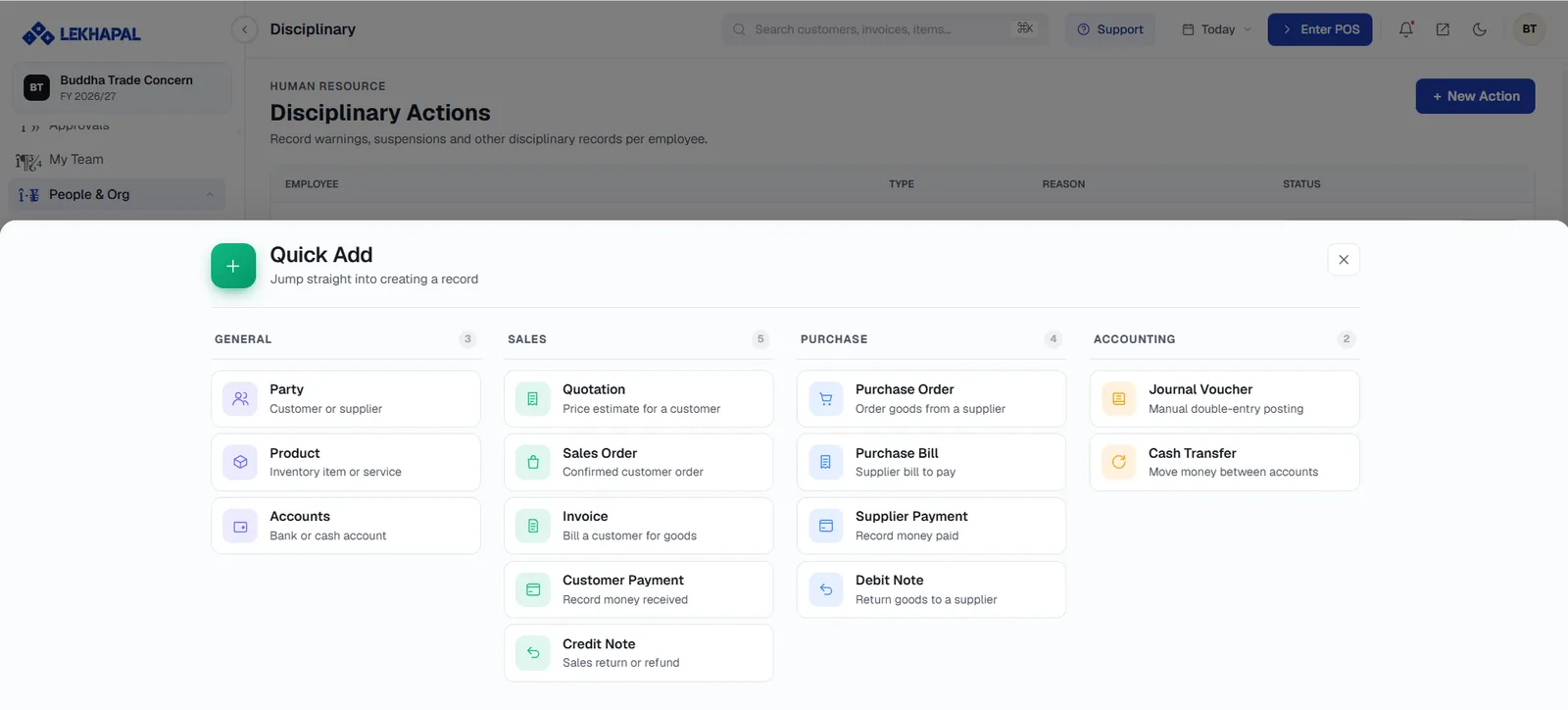
The Quick Add menu.

What you can create

Quick AddFull module
Sales / InvoiceSales Invoice
PurchasePurchases
CustomerParties
SupplierParties
ExpenseExpenses
PaymentCustomer Payment · Supplier Payment

How to use it

  1. Click + Quick Add.
  2. Choose what you want to create.
  3. Fill in the form and save.

Instead of Sales → Add New, it is one click and a choice.

Why it matters

  • Fewer clicks on repetitive work.
  • Less chance of losing your place mid-task — you can raise an invoice without leaving the report you were reading.
  • The record created is identical to one created from the module itself. There is no "lite" version.

What you see depends on your role

Quick Add only offers what your role permits. A cashier will not see Purchase.

Next

You are set up. Continue to the module you work in most:

  • Point of Sale — for counter sales
  • Sales — for invoicing and receivables
  • Purchase — for supplier bills and payables
Prev
Dashboard