Lekhapal User Manual
Get Started
  • Selling

    • Point of Sale
    • Sales
    • Loyalty
    • Online Store
  • Buying & Books

    • Purchase
    • Accounting
  • Operations

    • Inventory
    • CRM
    • Human Resources
Reports
Administration
  • Sign in
  • Create an account
  • Website
  • English
  • नेपाली
Get Started
  • Selling

    • Point of Sale
    • Sales
    • Loyalty
    • Online Store
  • Buying & Books

    • Purchase
    • Accounting
  • Operations

    • Inventory
    • CRM
    • Human Resources
Reports
Administration
  • Sign in
  • Create an account
  • Website
  • English
  • नेपाली
  • Getting Started

    • Overview
    • Accounting Basics
    • Create an Account
    • Signing In
    • Dashboard
    • Quick Add
  • Point of Sale
  • Sales

    • Overview
    • Quotation
    • Sales Order
    • Sales Invoice
    • Credit Note
    • Customer Payment
    • Allocate Customer Payment
  • Purchase

    • Overview
    • Purchase Order
    • Purchases
    • Expenses
    • Debit Note
    • Supplier Payment
    • Allocate Supplier Payment
  • Accounting

    • Overview
    • Bank Accounts
    • Cheque Register
    • Journal Voucher
    • Chart of Accounts
    • Contra Entry
    • Opening Balance
  • Inventory

    • Overview
    • Products
    • Movements
    • Manufacturing
    • Master Data
  • CRM
  • Loyalty
  • Human Resources

    • Overview
    • Self-Service
    • People & Organisation
    • Time & Attendance
    • Payroll & Compensation
    • HR Settings
  • Online Store
  • Reports

    • Overview
    • POS Reports
    • Sales Reports
    • Purchase Reports
    • Receivable & Payable
    • Party Reports
    • Tax Reports
    • Inventory Reports
    • Accounting Reports
    • Asset Reports
    • System Reports
  • Administration

    • Overview
    • Roles & Permissions
    • Users
    • Settings
    • File Manager
    • My Subscription

Create an Account

This page covers registering a brand-new business on Lekhapal. If your business is already on Lekhapal and someone has created a user for you, skip ahead to Signing In.

Request a new account

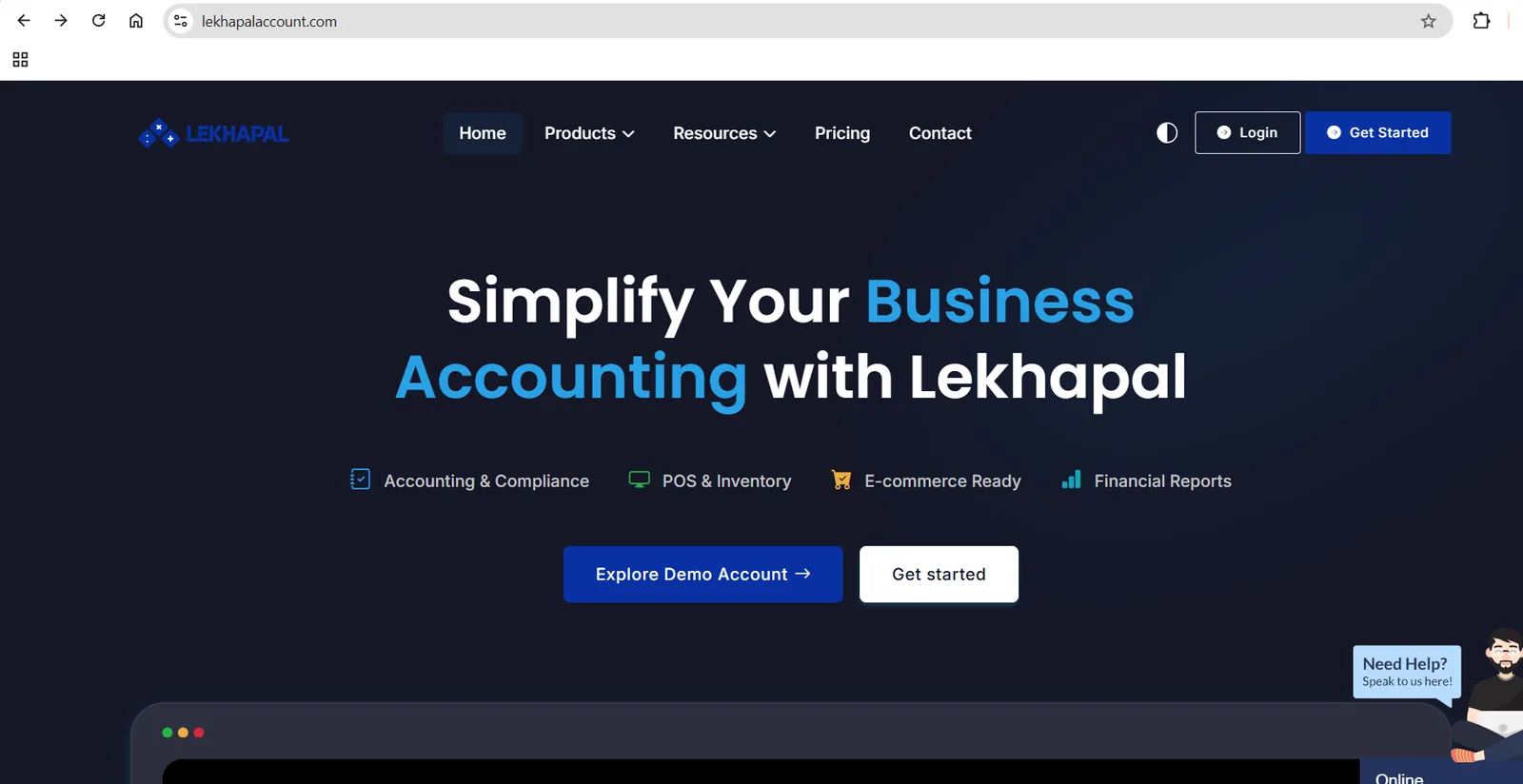
  1. Open your browser and go to the Lekhapal website at lekhapalaccount.com.
  2. Click Get Started in the top-right corner.
  3. You are taken to the Create New Account page.
  4. Enter a valid email address.
  5. Click Continue.
  6. Verify your email — enter the OTP, or click the verification link sent to you.
  7. Complete your account setup.

The Lekhapal website. Get Started, in the top-right corner, begins registration.

Use an email you control

The address you register becomes the owner account for the business. Use a company address you will keep — password resets and billing notices go there.

If the verification email or OTP does not arrive

Verification problems are almost always email-related, and are easy to fix. Work down this list:

  1. Check your Spam or Junk folder.
  2. Wait 30–60 seconds — delivery is not always instant.
  3. Click Resend OTP.
  4. Check the address for typing mistakes.
  5. Try a different address. Gmail is the most reliable.

Still nothing?

  • Refresh the page and start the process again.
  • If it still fails, contact Lekhapal support.

After verification

Once your email is verified and setup is complete, you can sign in. Before you start trading, it is worth working through the setup order in the Introduction — business details, master data, products, parties and opening balances.

Next

→ Signing In

Prev
Accounting Basics
Next
Signing In