Sales
The Sales module covers everything you sell away from the counter: offering a price, confirming the order, billing it, handling returns and collecting the money.
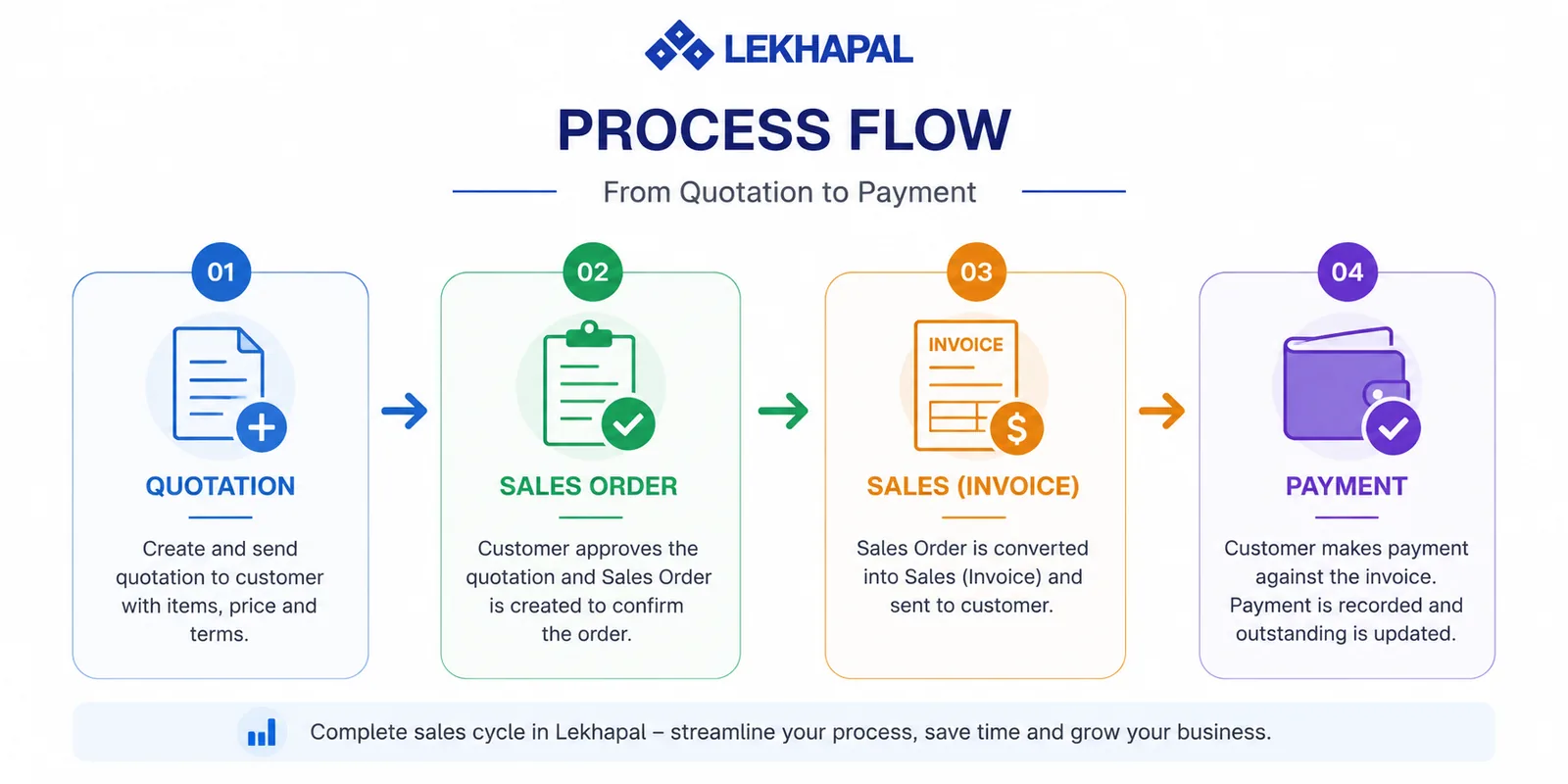
The sales cycle
| Step | Document | What it does |
|---|---|---|
| 1 | Quotation | Offers the customer a price, before anything is committed |
| 2 | Sales Order | Confirms the customer has agreed to buy |
| 3 | Sales Invoice | Bills the customer and records the revenue |
| 4 | Customer Payment | Records the money coming in |
| — | Credit Note | Reduces an invoice after a return, an overcharge or a discount |
| — | Allocate Customer Payment | Matches money received to specific invoices |
You do not have to use every step. A simple retail sale can go straight to an invoice; a project-based business will use the whole chain. What matters is that each step carries its data forward — a quotation becomes an order without re-keying, an order becomes an invoice, and the invoice tracks its own outstanding balance.
Counter sales are different
Sales rung up at the till go through the Point of Sale instead. They produce the same accounting result but in a single step.
The screens all work the same way
Every document in this module — and in Purchase — uses the same two screens.
The listing
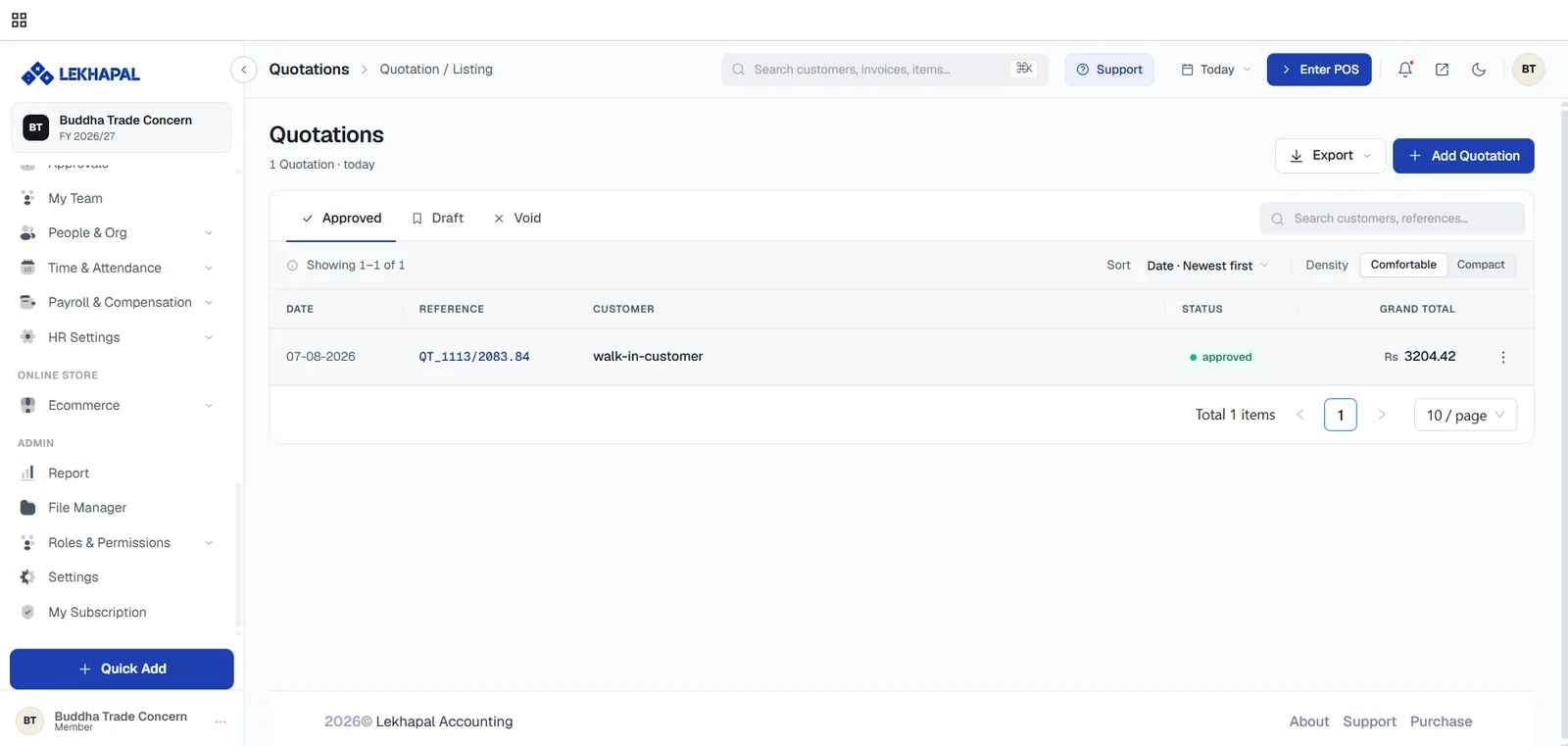
| Control | What it does |
|---|---|
| Approved / Draft / Void tabs | Filters by document status |
| Search | Finds by customer or reference |
| Sort | Newest or oldest first |
| Density | Comfortable or Compact row height |
| Export | Downloads the list |
| + Add … | Creates a new document |
| ⋮ on each row | Row actions — view, edit, print, void |
Click any reference number to open the document's detail page.
The form
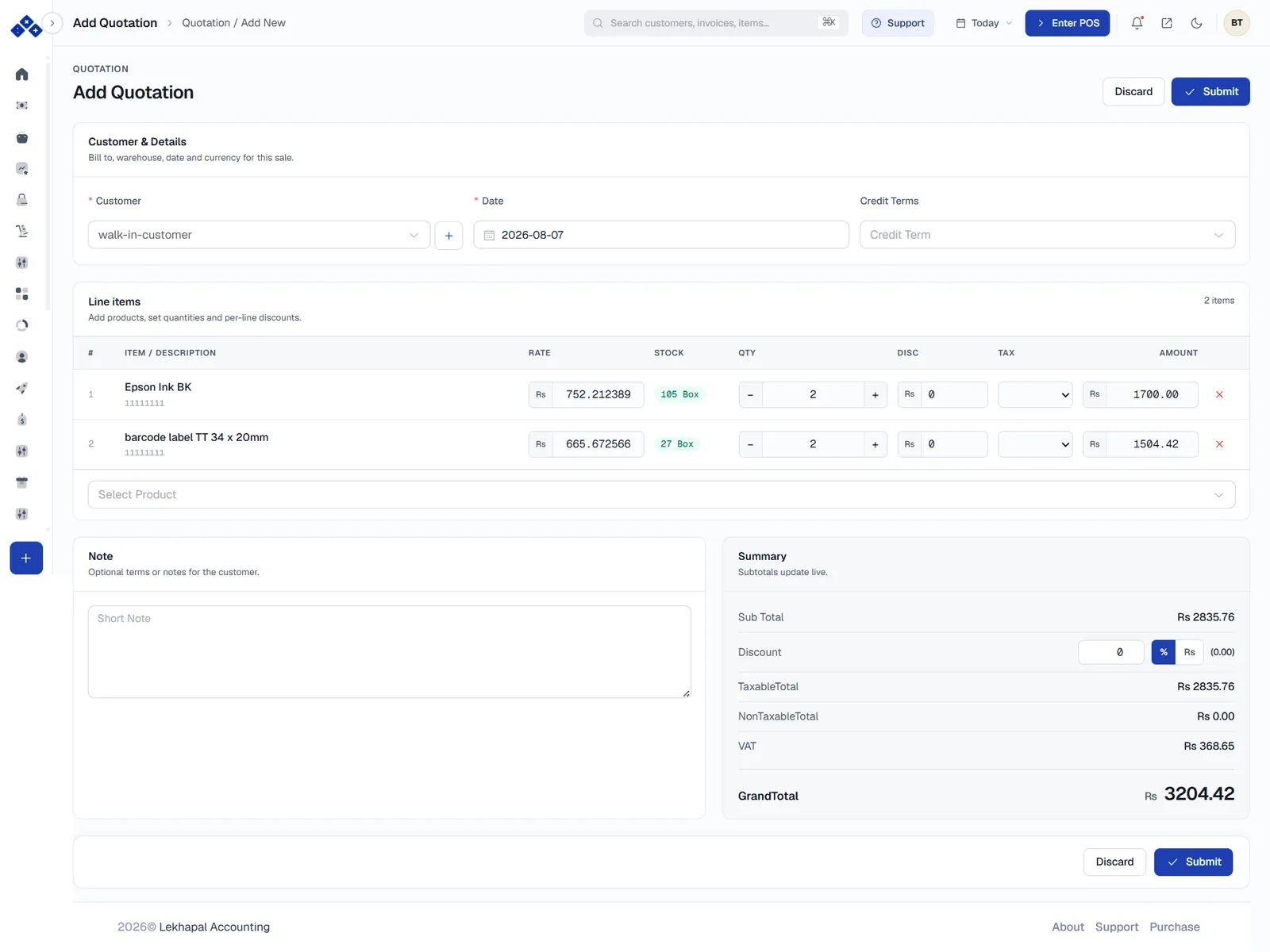
Forms are laid out in the same four blocks:
- Customer & Details — who it is for, the date, credit terms, warehouse and currency.
- Line items — the products, with rate, available stock, quantity, per-line discount, tax and amount. Add lines from the Select Product box at the foot; remove one with the ✕ at the end of the row.
- Note — optional terms that travel with the document.
- Summary — Sub Total, Discount (as a percentage or an amount), TaxableTotal, NonTaxableTotal, VAT and GrandTotal. It updates live as you type.
Submit saves the document; Discard abandons it.
Document statuses
| Status | Meaning |
|---|---|
| Draft / pending | Created but not finalised. Still editable, and not yet reflected in your books |
| Approved | Finalised. The accounting entry is posted |
| Void | Cancelled. Kept for the audit trail but excluded from figures |
Approval is a real step: a pending sale shows a banner with an Approve Sale button, and only once approved does it become part of revenue and receivables.
Void, do not delete
Lekhapal voids documents rather than deleting them, so the numbering and the audit trail stay intact. A voided document remains visible under the Void tab.
Where sales appear in the books
Approving a sales invoice does four things at once:
- posts revenue to the chart of accounts,
- creates a receivable against the customer,
- reduces stock for the items sold,
- records the VAT for your tax return.
You can see the results in the Sales reports, the Invoice Report and the Sales Register.