Allocate Supplier Payment
Recording a supplier payment says money left your account. Allocating it says which bills that money settles. Without allocation the supplier's total balance is right, but you cannot tell which bills are cleared and which are still overdue.
What it helps you do
- Match payments to the correct purchase bills.
- Clear outstanding dues accurately.
- Avoid confusion in supplier balances.
- Track which bills are paid and which are still pending.
The allocation list
Purchases → Allocate Supplier Payment
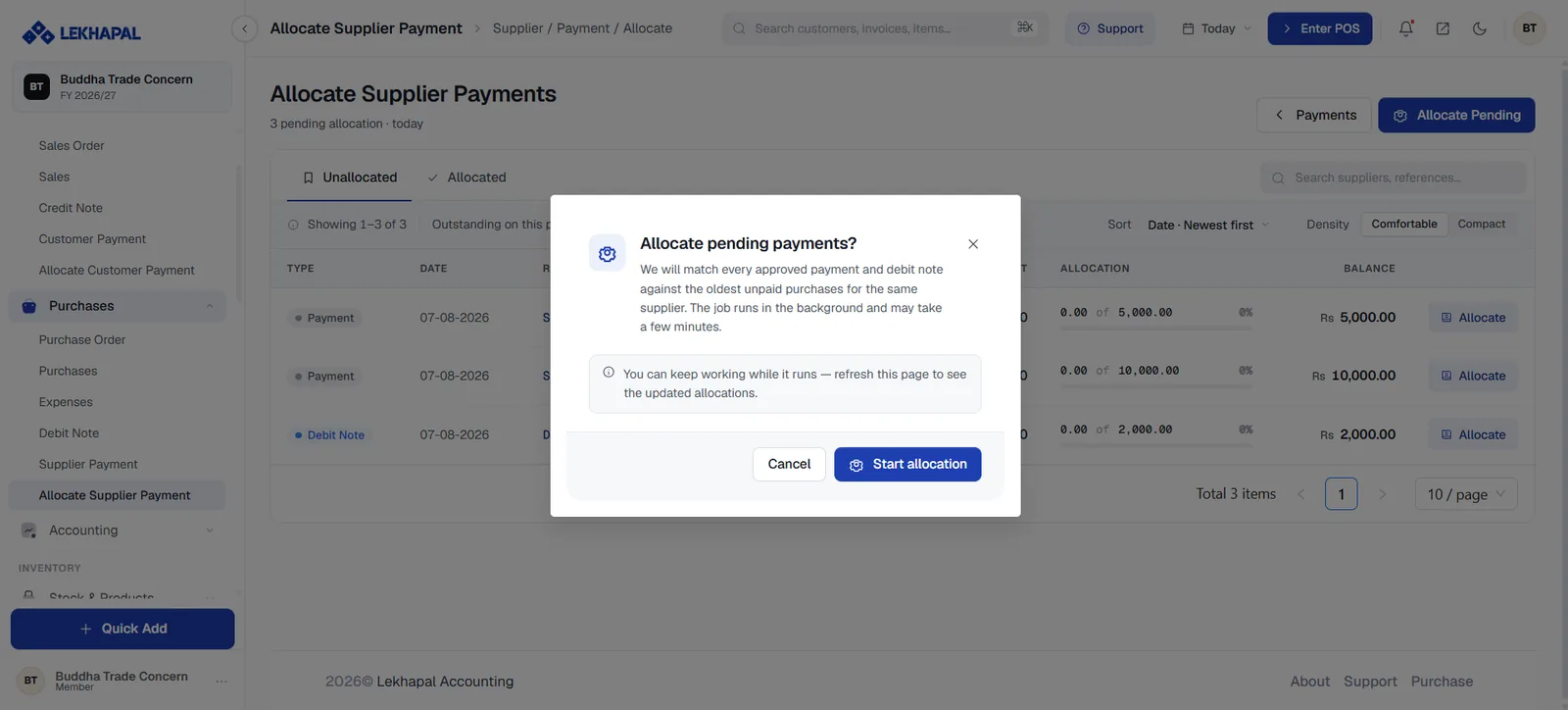
Two tabs — Unallocated and Allocated. Each row shows the Type (a payment or a debit note), the date, reference, supplier, amount, an allocation progress bar and the remaining Balance.
Click Allocate on a row to apply it bill by bill. The allocation screen works exactly like the customer-side equivalent: a running Payment / Allocated / Remaining header, one row per open bill, a Fill button per row, Apply oldest first, and Save allocation.
Allocate several at once
Allocate Pending matches everything outstanding in one go. Lekhapal pairs every approved payment and debit note against the oldest unpaid purchases for the same supplier. The job runs in the background and can take a few minutes; keep working and refresh the page to see the result.
Check disputed bills first
Bulk allocation applies money oldest-first. If you are deliberately withholding payment on one bill while paying a later one, allocate that payment by hand.
Example
A business has two purchase bills:
| Bill | Amount |
|---|---|
| Bill 1 | Rs. 7,000 |
| Bill 2 | Rs. 3,000 |
| Total payable | Rs. 10,000 |
It pays Rs. 7,000. You can allocate the whole amount to Bill 1, clearing it and leaving Bill 2 outstanding — or split it across both. The supplier balance is Rs. 3,000 either way, but which bill is overdue is not.