Lekhapal User Manual
Get Started
  • Selling

    • Point of Sale
    • Sales
    • Loyalty
    • Online Store
  • Buying & Books

    • Purchase
    • Accounting
  • Operations

    • Inventory
    • CRM
    • Human Resources
Reports
Administration
  • Sign in
  • Create an account
  • Website
  • English
  • नेपाली
Get Started
  • Selling

    • Point of Sale
    • Sales
    • Loyalty
    • Online Store
  • Buying & Books

    • Purchase
    • Accounting
  • Operations

    • Inventory
    • CRM
    • Human Resources
Reports
Administration
  • Sign in
  • Create an account
  • Website
  • English
  • नेपाली
  • Getting Started

    • Overview
    • Accounting Basics
    • Create an Account
    • Signing In
    • Dashboard
    • Quick Add
  • Point of Sale
  • Sales

    • Overview
    • Quotation
    • Sales Order
    • Sales Invoice
    • Credit Note
    • Customer Payment
    • Allocate Customer Payment
  • Purchase

    • Overview
    • Purchase Order
    • Purchases
    • Expenses
    • Debit Note
    • Supplier Payment
    • Allocate Supplier Payment
  • Accounting

    • Overview
    • Bank Accounts
    • Cheque Register
    • Journal Voucher
    • Chart of Accounts
    • Contra Entry
    • Opening Balance
  • Inventory

    • Overview
    • Products
    • Movements
    • Manufacturing
    • Master Data
  • CRM
  • Loyalty
  • Human Resources

    • Overview
    • Self-Service
    • People & Organisation
    • Time & Attendance
    • Payroll & Compensation
    • HR Settings
  • Online Store
  • Reports

    • Overview
    • POS Reports
    • Sales Reports
    • Purchase Reports
    • Receivable & Payable
    • Party Reports
    • Tax Reports
    • Inventory Reports
    • Accounting Reports
    • Asset Reports
    • System Reports
  • Administration

    • Overview
    • Roles & Permissions
    • Users
    • Settings
    • File Manager
    • My Subscription

Credit Note

A credit note is issued to a customer when goods are returned, when they have been overcharged, or when a discount or refund is agreed after the sale. It reduces what the customer owes — or refunds what they have already paid.

When to use one

  • A product is returned.
  • You have overbilled.
  • You agree a discount after the invoice was issued.
  • Goods arrived damaged or defective.

What it helps you do

  • Adjust or reduce a previously issued invoice.
  • Record sales returns.
  • Correct billing errors.
  • Manage refunds and customer credits.

The credit note list

Sales → Credit Note
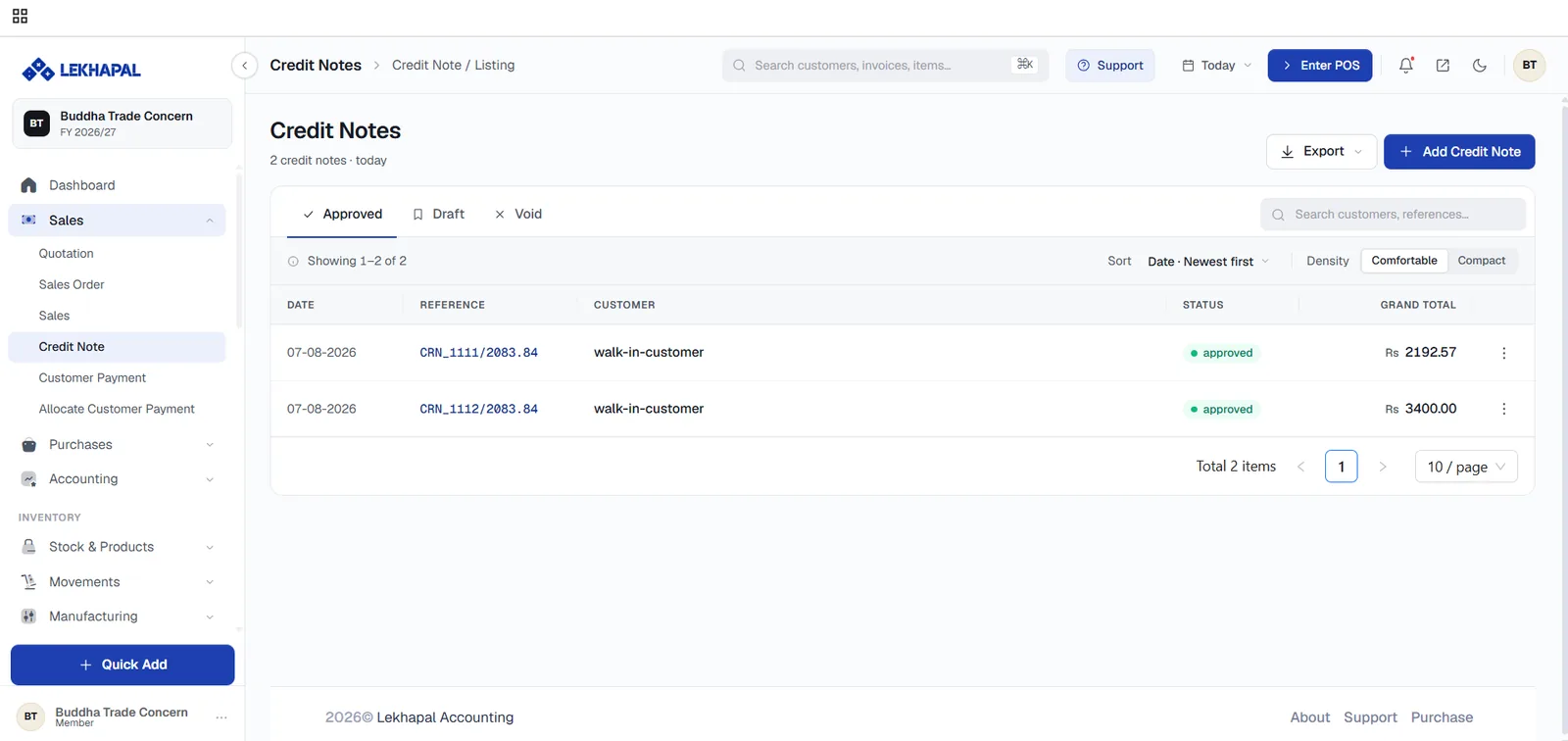
The Credit Notes listing.

The same Approved / Draft / Void tabs as the rest of the module, with each row showing the date, reference (for example CRN_1111/2083.84), customer, status and grand total.

Create a credit note
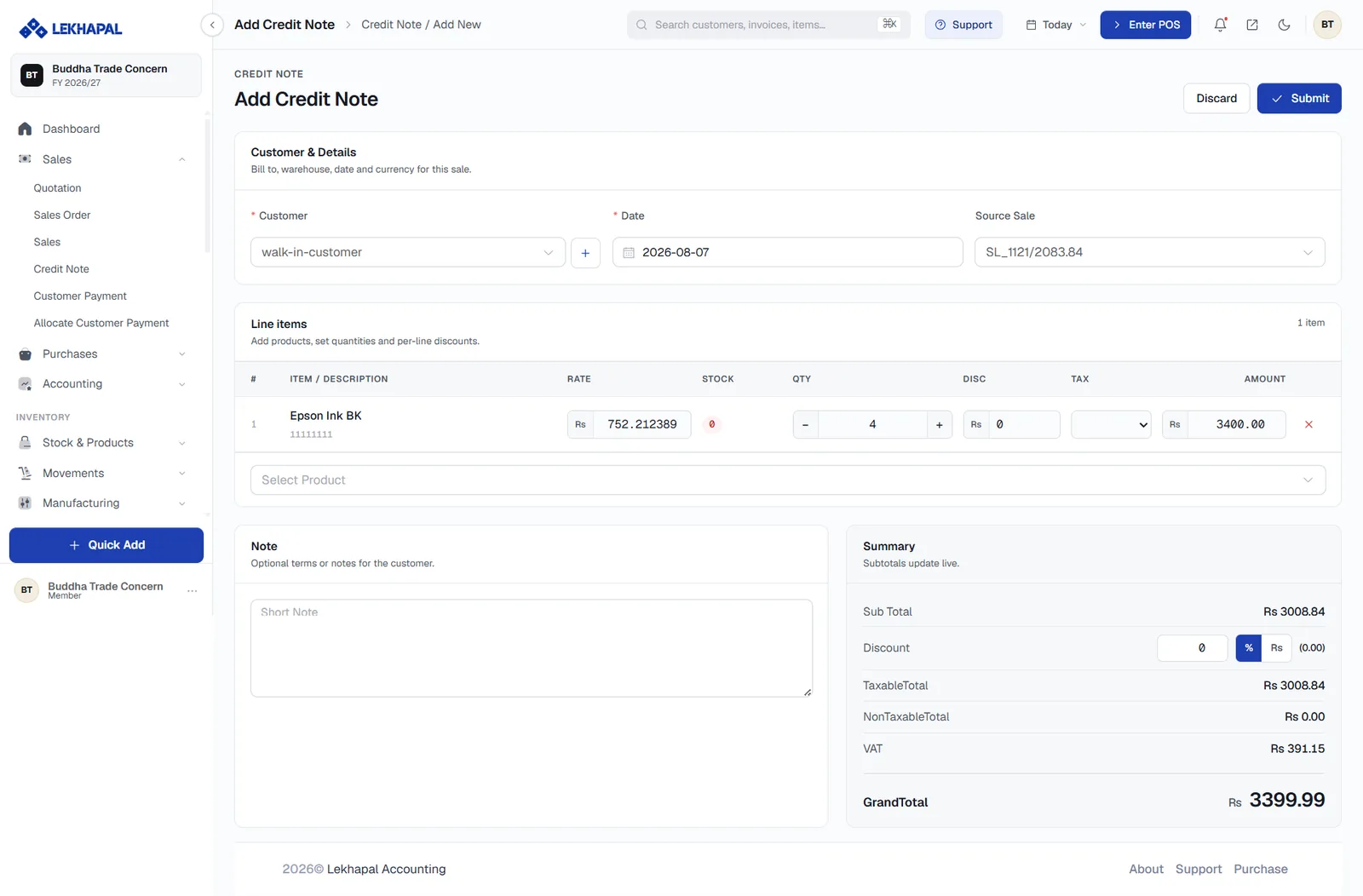
The Add Credit Note form.

  1. Click + Add Credit Note.
  2. Choose the Customer and the Date.
  3. Set Source Sale — the invoice this credit note is being raised against. This is the field that makes the credit note reduce the right balance, so do not leave it empty when the credit relates to a specific bill.
  4. Add the Line items being returned or credited, with quantities and rates.
  5. Add a Note explaining the reason — useful months later.
  6. Check the Summary and click Submit.
  7. Approve it, as with any other sales document.

Always link the source sale

A credit note without a source sale becomes an unallocated credit sitting on the customer's account. It is not wrong, but it has to be matched later through Allocate Customer Payment.

What it does to your books

Approving a credit note:

  • reduces the customer's receivable,
  • reverses the revenue for the credited amount,
  • returns the goods to stock, if line items are involved,
  • records the VAT adjustment, which appears in the Sales Return Register.

Example

A customer bought goods worth Rs. 10,000, then returned Rs. 2,000 of them. You issue a credit note for Rs. 2,000.

Now either:

  • the customer pays only Rs. 8,000, or
  • if they had already paid in full, the Rs. 2,000 is refunded or held as a credit against their next purchase.

Next

→ Customer Payment

Prev
Sales Invoice
Next
Customer Payment