Customer Payment
Customer Payment records money received from a customer. It reduces what they owe you and increases the balance of the bank or cash account the money went into.
What it helps you do
- Track payments received.
- Reduce outstanding receivables.
- Keep customer balances accurate.
- Link payments directly to invoices.
Record a payment
Sales → Customer Payment → + Record Payment, or Record Payment on an approved sales invoice — which pre-fills the invoice and the amount.
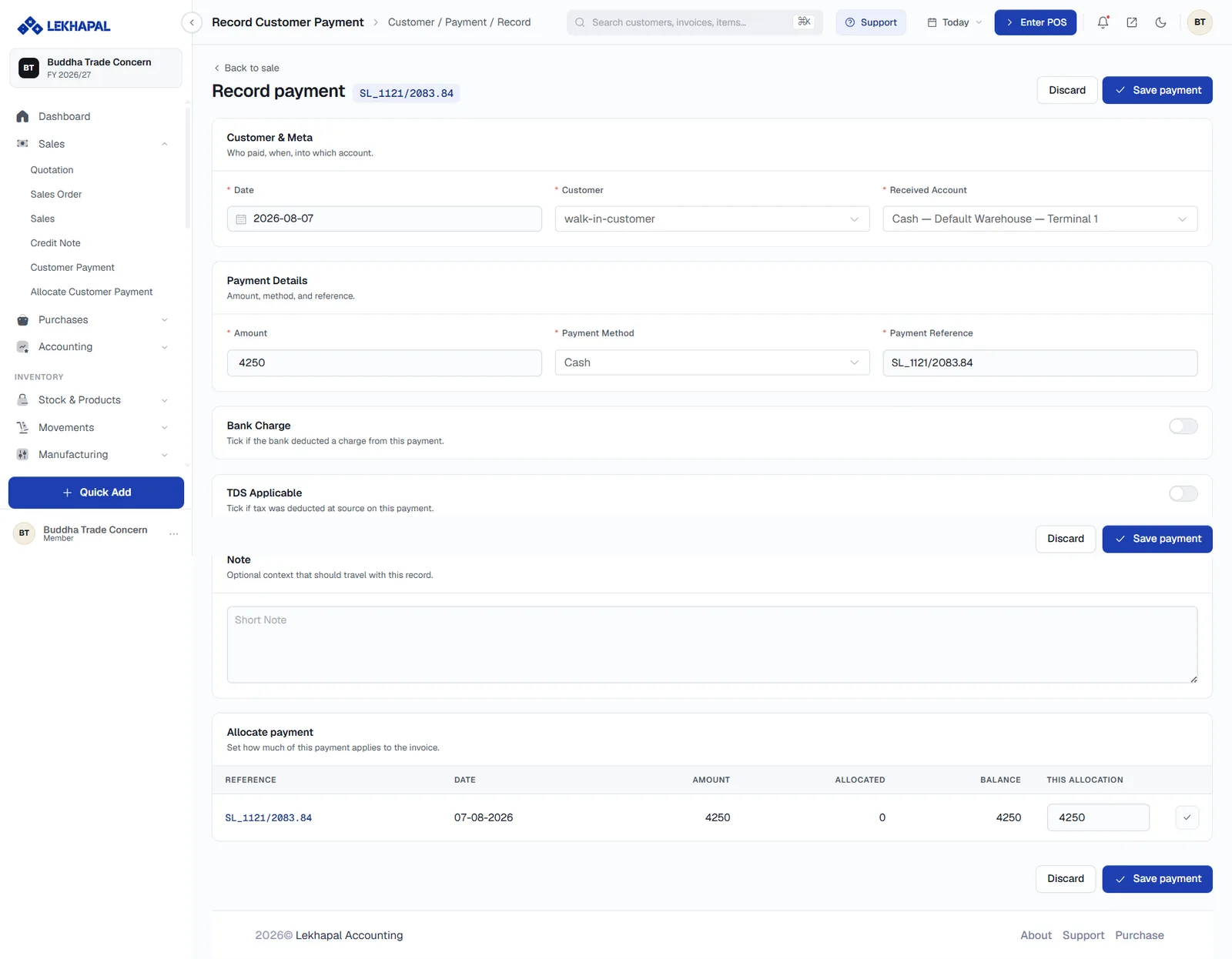
The form is in four blocks:
Customer & Meta
| Field | Notes |
|---|---|
| Date | When the money was received |
| Customer | Who paid |
| Received Account | Which bank or cash account the money went into |
Payment Details
| Field | Notes |
|---|---|
| Amount | How much was received |
| Payment Method | Cash, bank, cheque, online and so on |
| Payment Reference | The invoice or transaction reference |
Bank Charge and TDS Applicable
Two toggles for the cases that would otherwise not reconcile:
- Bank Charge — turn on if the bank deducted a charge from the payment, so the amount that reached your account is less than the amount the customer sent.
- TDS Applicable — turn on if tax was deducted at source. The deducted amount is tracked and appears in the TDS Report.
Allocate payment
At the foot of the form, the customer's open invoices are listed with their Amount, already Allocated, Balance and a This Allocation box. Type how much of this payment applies to each invoice, or use the tick to fill the line. See Allocate Customer Payment for the full mechanics.
Click Save payment.
The payment record
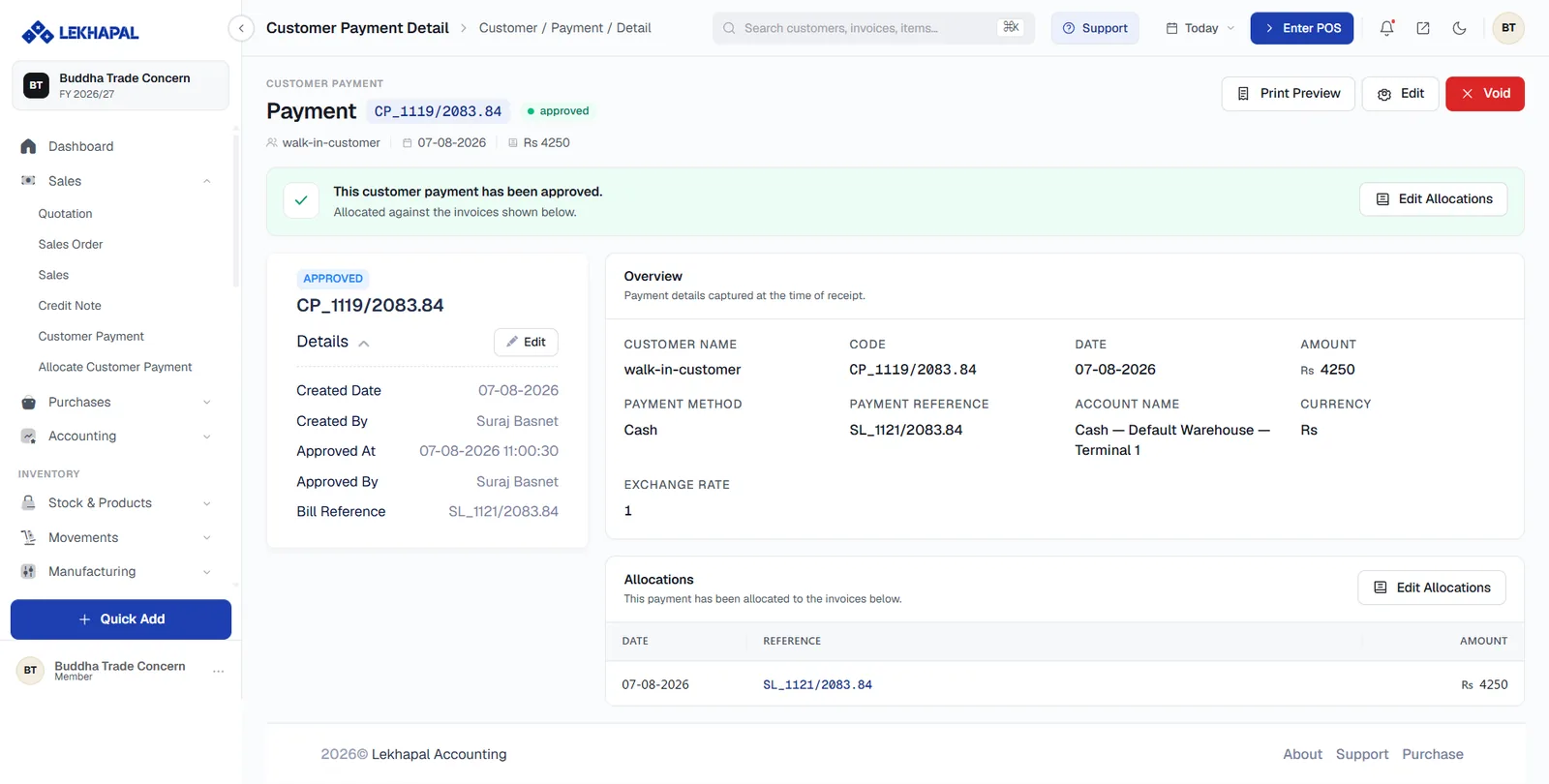
Once approved, the payment detail page shows the Overview — customer, code, date, amount, payment method, reference, account and exchange rate — the Details panel with created and approved audit fields, and the Allocations table listing every invoice this payment was applied to.
Edit Allocations changes how the money is spread across invoices without touching the payment itself. Print Preview, Edit and Void are also available.
Example
A customer buys goods worth Rs. 10,000.
- They pay Rs. 6,000 now, recorded as a customer payment.
- Rs. 4,000 remains outstanding.
- When the rest arrives, you record a second customer payment.
Both payments appear on the invoice's Payments section and in the Party Statement.