Time & Attendance
Four screens track when people work, when they do not, and when they work extra. All four feed payroll.
Attendance
Time & Attendance → Attendance
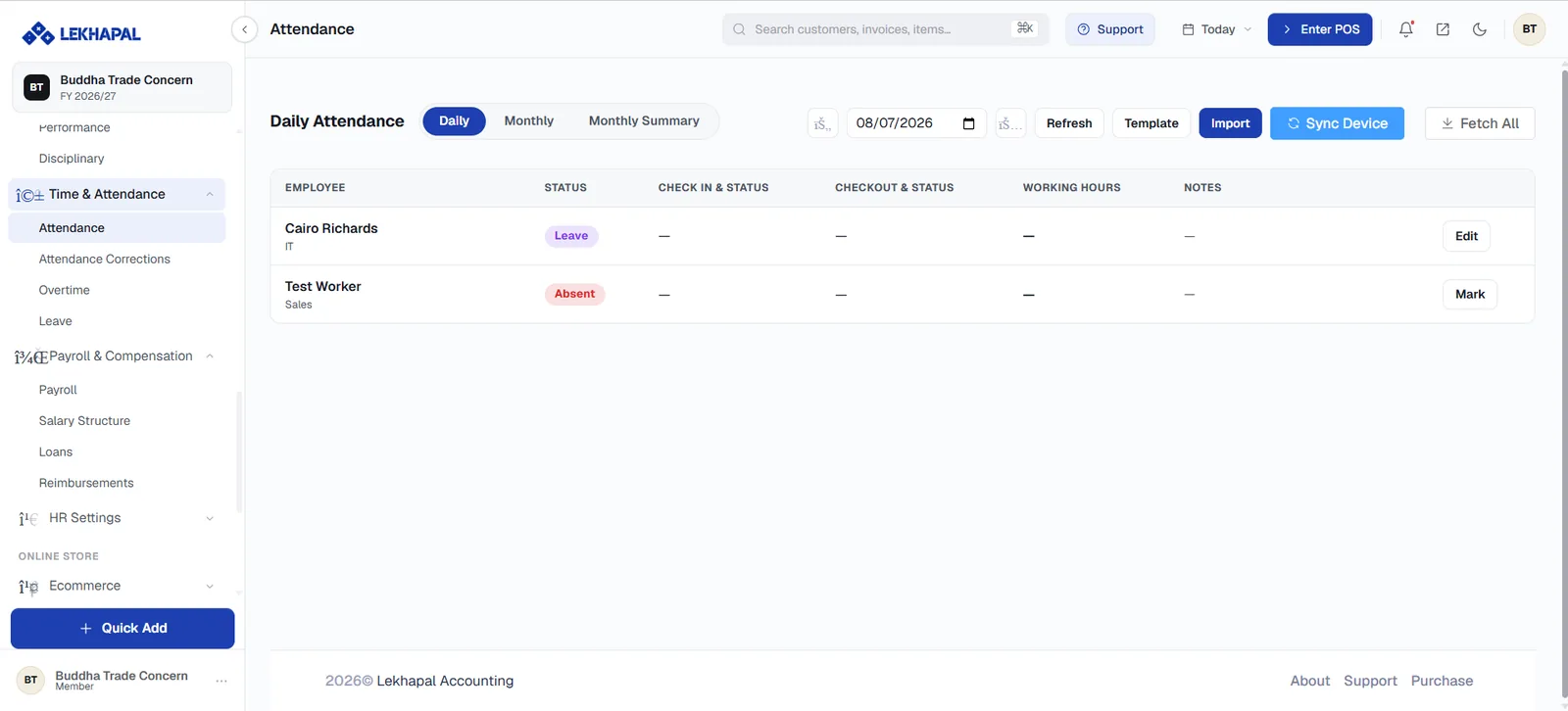
Three views, selected by the pills at the top: Daily, Monthly and Monthly Summary. Pick the date beside them.
Each row shows the employee, their department, and:
| Column | Contents |
|---|---|
| Status | Present, Absent, Leave and so on, as a coloured badge |
| Check In & Status | Punch-in time and whether it was late |
| Checkout & Status | Punch-out time |
| Working Hours | Hours worked that day |
| Notes | Anything recorded against the day |
Mark sets a status for an employee who has none; Edit amends an existing record.
Getting attendance in
| Action | What it does |
|---|---|
| Sync Device | Pulls punches from a connected attendance device |
| Fetch All | Retrieves all outstanding device records |
| Import | Uploads attendance from a file |
| Template | Downloads the import template |
| Refresh | Reloads the view |
Attendance Corrections
Time & Attendance → Attendance Corrections
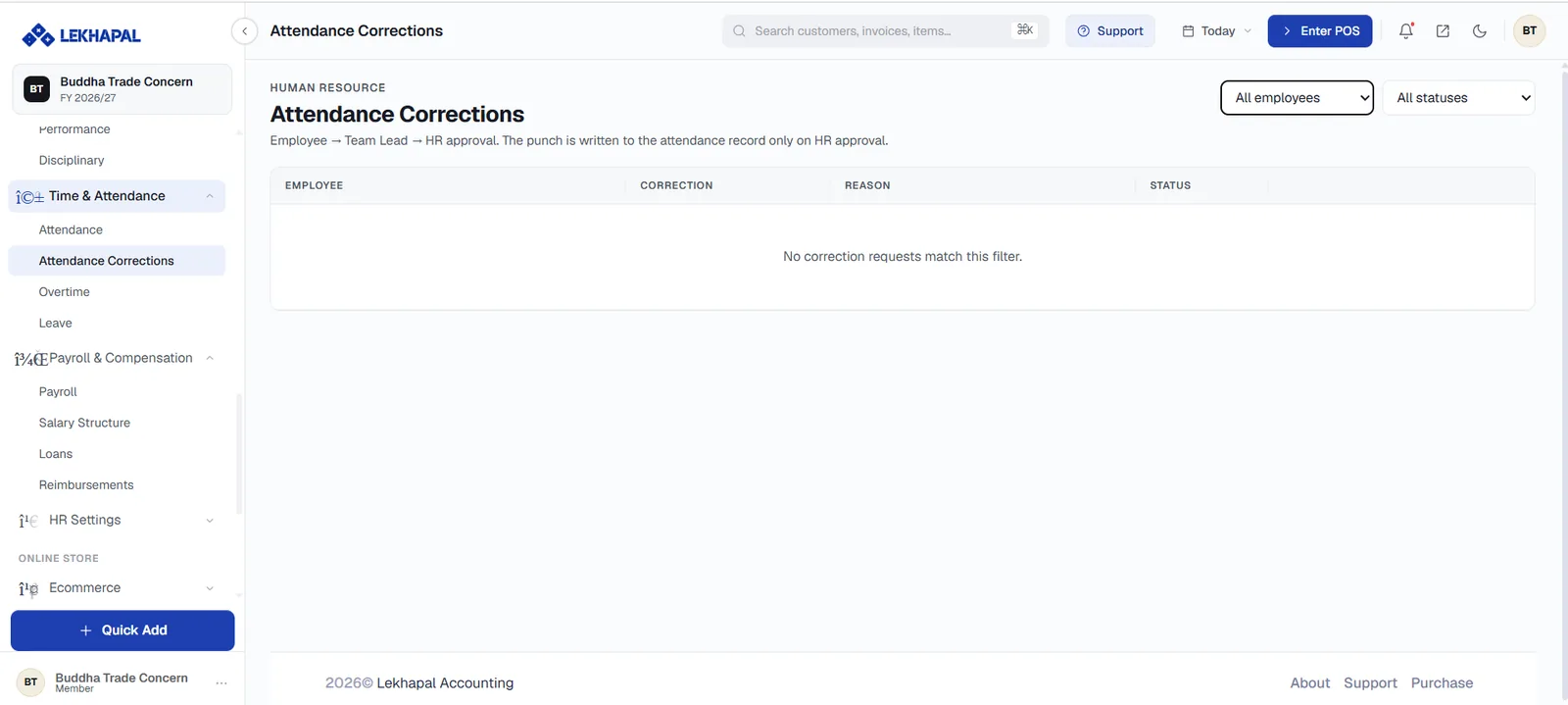
Where employees ask for a wrong or missing punch to be fixed. The route is stated at the top of the screen:
Employee → Team Lead → HR approval. The punch is written to the attendance record only on HR approval.
Filter by employee and by status. Each request shows the employee, the correction being asked for, the reason, and its status.
Corrections do not apply until HR approves
A team lead's approval moves the request along; it does not change the attendance record. Only HR approval writes the punch — which is what keeps payroll defensible.
Overtime
Time & Attendance → Overtime
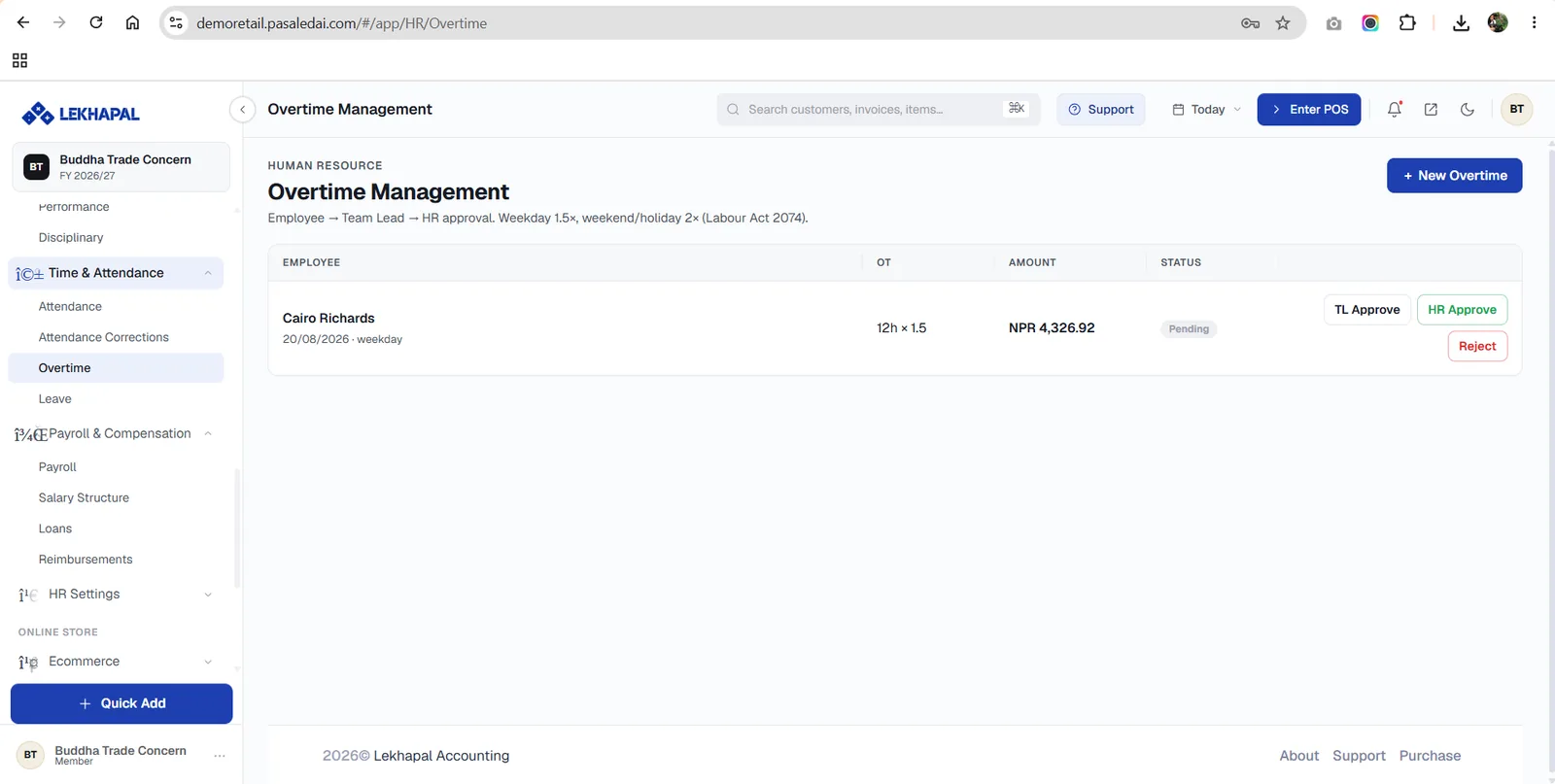
Extra hours worked, with rates set by the Labour Act 2074:
| Category | Multiplier |
|---|---|
| Weekday | 1.5× |
| Weekend or holiday | 2× |
The same Employee → Team Lead → HR approval route applies, which is why each pending row carries both TL Approve and HR Approve, plus Reject.
Each row shows the employee, the date and category, the OT (for example 12h × 1.5), the calculated Amount and the status.
Raise an overtime request
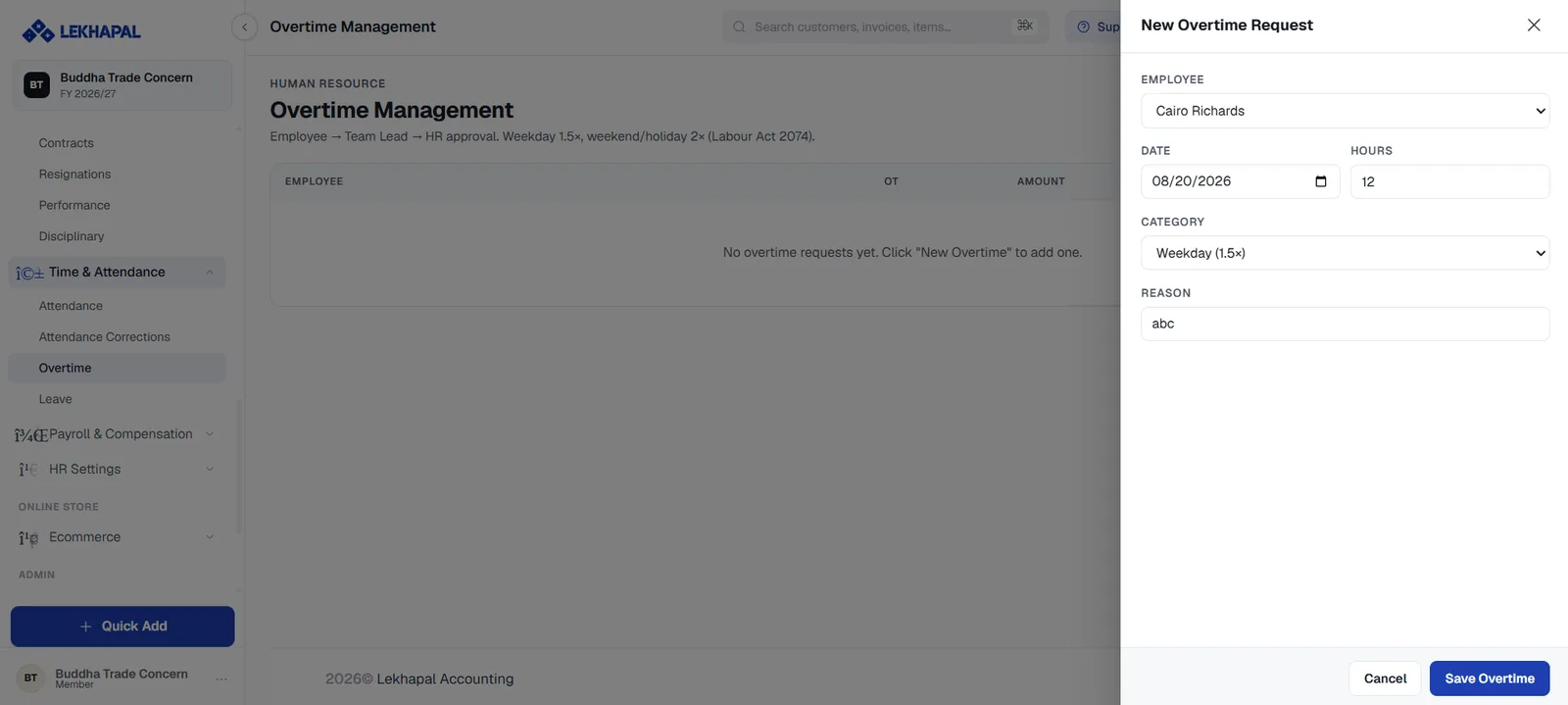
Click + New Overtime and set the Employee, Date, Hours, Category (Weekday (1.5×) or weekend/holiday) and a Reason. Click Save Overtime.
Approved overtime flows into the OVERTIME column of the next payroll run.
Leave
Time & Attendance → Leave
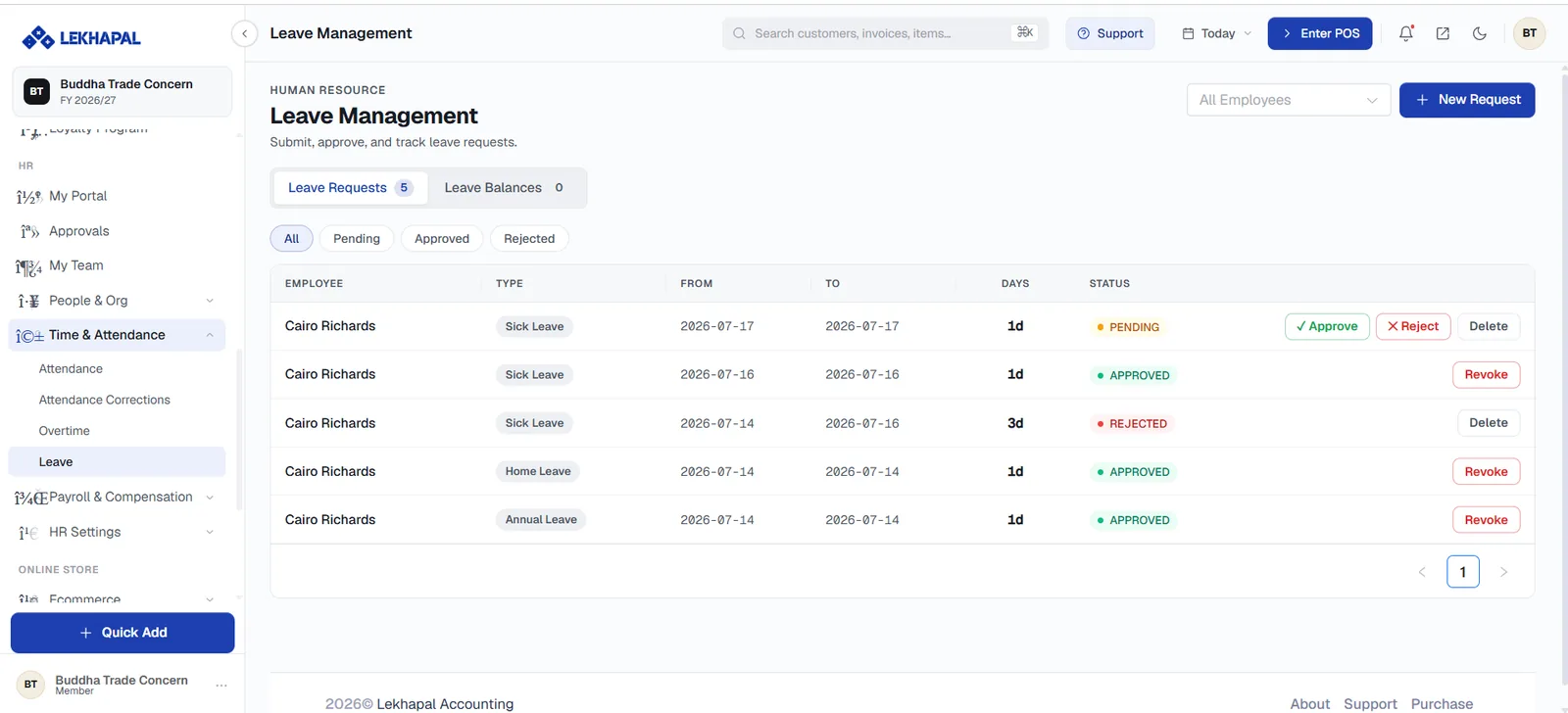
Submit, approve and track leave requests.
Two tabs — Leave Requests and Leave Balances — and status filters: All, Pending, Approved, Rejected.
Each request shows the employee, the leave Type, the From and To dates, the number of Days and its Status, with the actions that apply:
| Status | Actions |
|---|---|
| Pending | Approve, Reject, Delete |
| Approved | Revoke |
| Rejected | Delete |
+ New Request raises leave on an employee's behalf; employees raise their own from My Portal.
Leave types and entitlements are configured in HR Settings.
Next
→ Payroll