Lekhapal User Manual
Get Started
  • Selling

    • Point of Sale
    • Sales
    • Loyalty
    • Online Store
  • Buying & Books

    • Purchase
    • Accounting
  • Operations

    • Inventory
    • CRM
    • Human Resources
Reports
Administration
  • Sign in
  • Create an account
  • Website
  • English
  • नेपाली
Get Started
  • Selling

    • Point of Sale
    • Sales
    • Loyalty
    • Online Store
  • Buying & Books

    • Purchase
    • Accounting
  • Operations

    • Inventory
    • CRM
    • Human Resources
Reports
Administration
  • Sign in
  • Create an account
  • Website
  • English
  • नेपाली
  • Getting Started

    • Overview
    • Accounting Basics
    • Create an Account
    • Signing In
    • Dashboard
    • Quick Add
  • Point of Sale
  • Sales

    • Overview
    • Quotation
    • Sales Order
    • Sales Invoice
    • Credit Note
    • Customer Payment
    • Allocate Customer Payment
  • Purchase

    • Overview
    • Purchase Order
    • Purchases
    • Expenses
    • Debit Note
    • Supplier Payment
    • Allocate Supplier Payment
  • Accounting

    • Overview
    • Bank Accounts
    • Cheque Register
    • Journal Voucher
    • Chart of Accounts
    • Contra Entry
    • Opening Balance
  • Inventory

    • Overview
    • Products
    • Movements
    • Manufacturing
    • Master Data
  • CRM
  • Loyalty
  • Human Resources

    • Overview
    • Self-Service
    • People & Organisation
    • Time & Attendance
    • Payroll & Compensation
    • HR Settings
  • Online Store
  • Reports

    • Overview
    • POS Reports
    • Sales Reports
    • Purchase Reports
    • Receivable & Payable
    • Party Reports
    • Tax Reports
    • Inventory Reports
    • Accounting Reports
    • Asset Reports
    • System Reports
  • Administration

    • Overview
    • Roles & Permissions
    • Users
    • Settings
    • File Manager
    • My Subscription

Users

Users are the accounts that can sign in. Each one is assigned a role, which controls what they can do once inside.

What it helps you do

  • Add and manage system users.
  • Assign roles and permissions.
  • Control access to different modules.
  • Track user activity.

The user list

Roles & Permissions → Users
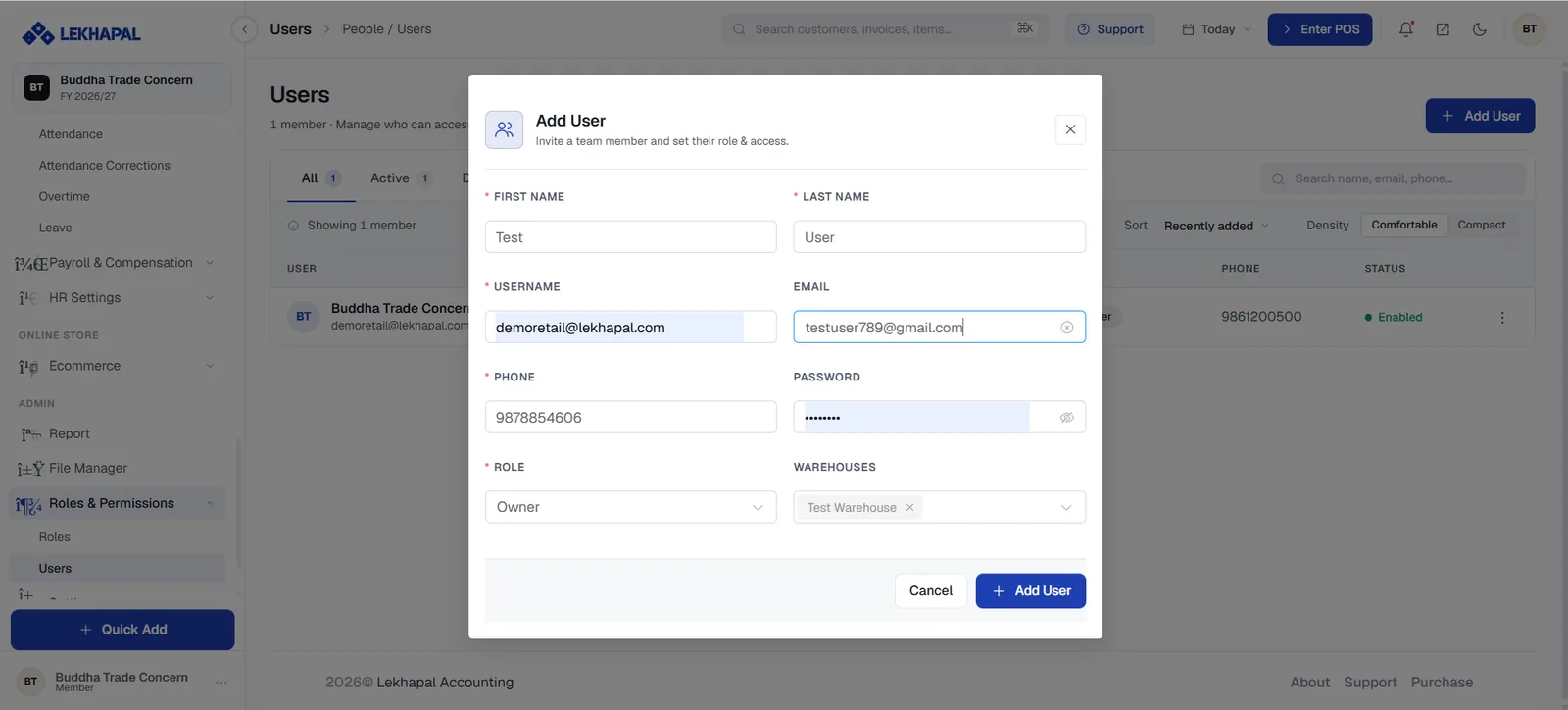
The Users list, with the Add User dialog open.

Tabs filter by state — All, Active, Disabled — each with a count. Every row shows the user's name and email, their role, phone and Status. Sort, density and search work as elsewhere.

Add a user

  1. Click + Add User.

  2. Fill in the dialog:

    FieldNotes
    First Name / Last NameRequired
    UsernameWhat they sign in with
    EmailWhere password resets and notifications go
    PhoneRequired
    PasswordTheir initial password
    RoleRequired — see Roles & Permissions
    WarehousesWhich locations this user can work in. Leave empty for all
  3. Click Add User.

Restrict warehouses for branch staff

Assigning a user to one warehouse keeps their POS, stock and transfers scoped to that location — useful for multi-branch businesses and a sensible default for counter staff.

Example

A business with three staff:

PersonRoleWhat they can do
CashierCashierBilling and POS only
AccountantAccountantAccounts and reports
ManagerManagerOverall access

Each signs in with their own user account. That is what makes the User Log and the Activity Log meaningful — shared logins destroy the audit trail.

Next

→ Settings

Prev
Roles & Permissions
Next
Settings