Dashboard
The dashboard is where you land after signing in. It answers one question: how is the business doing right now?
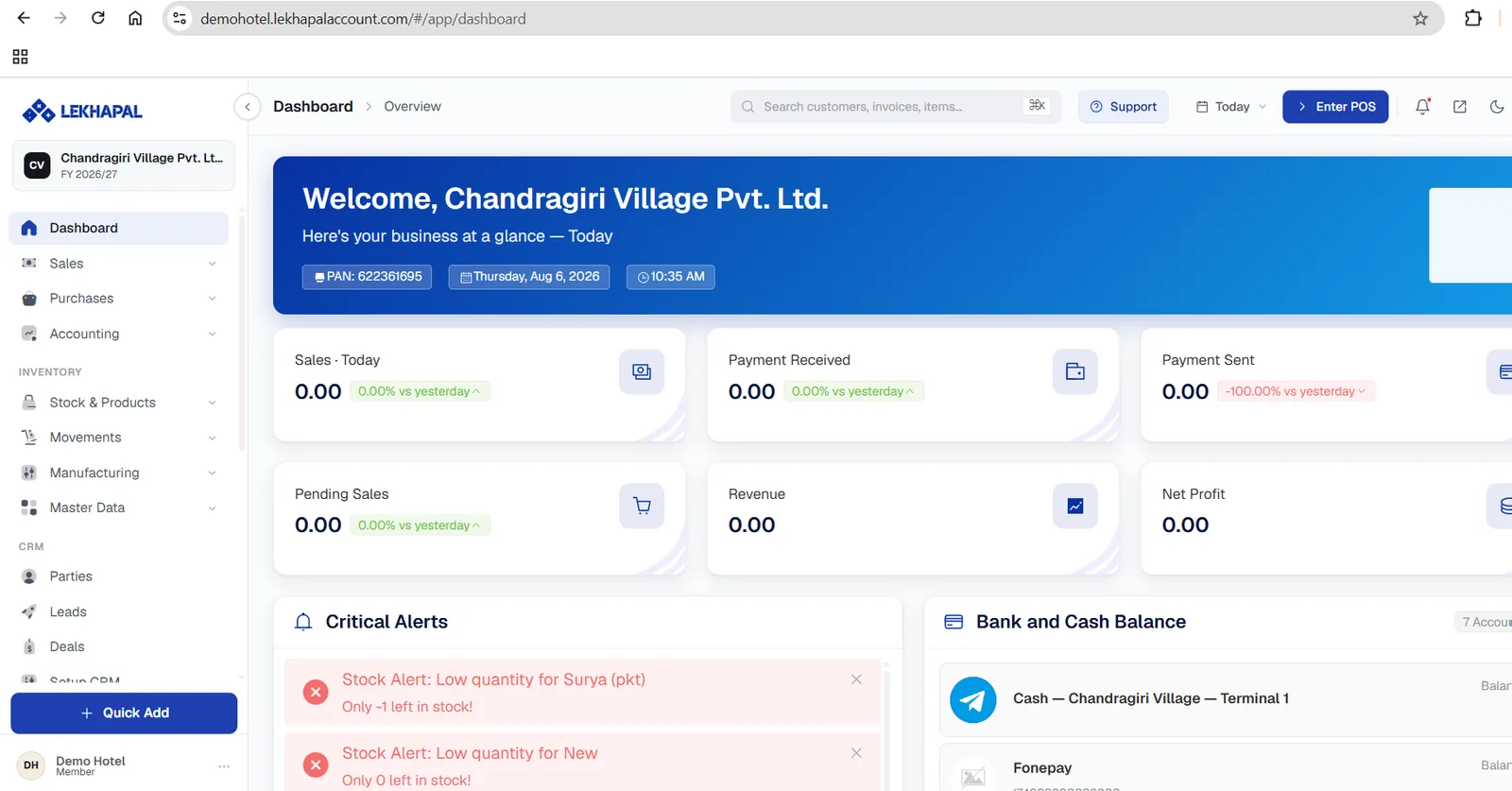
The welcome banner
Across the top of the page you get your business identity and the period you are working in:
- your business name,
- your PAN,
- today's date and time,
- the fiscal year currently selected, shown under the business name in the top-left corner.
Check the fiscal year
Everything you post — and every figure on this page — belongs to the fiscal year selected in the top-left corner. Confirm it before entering back-dated transactions.
Key figures
The tiles below the banner summarise trading for the period chosen in the Today selector in the top bar. Change that selector to move between today, this week, this month and so on.
| Tile | What it shows |
|---|---|
| Sales | Value of sales recorded in the period, with the change against the previous period |
| Payment Received | Money collected from customers |
| Payment Sent | Money paid out to suppliers |
| Pending Sales | Sales raised but not yet completed |
| Revenue | Recognised revenue for the period |
| Net Profit | Revenue less costs and expenses |
The small percentage beside each figure compares it with the previous equivalent period, so you can see direction at a glance, not just level.
Critical alerts
The alerts panel surfaces things that need attention before they become problems — most commonly low or negative stock, raised from the reorder levels on your products. Each alert names the product and the quantity remaining.
Dismiss an alert with the ✕ on its right. For the full picture, use the Product Quantity Alerts report.
Bank and cash balance
A live list of your bank and cash accounts with current balances, so you can see available funds without leaving the dashboard.
The top bar
The top bar stays with you everywhere in Lekhapal:
| Control | What it does |
|---|---|
| Search | Finds customers, invoices and items. The keyboard shortcut is shown in the box |
| Support | Opens support |
| Period selector | Sets the period for the dashboard figures |
| Enter POS | Opens the point of sale |
| Notifications | Bell icon; a dot means something is waiting |
| Dark mode | Moon icon; switches the interface theme |
Quick Add
The blue + Quick Add button at the foot of the sidebar creates a sale, purchase, customer, supplier, expense or payment from wherever you happen to be. See Quick Add.