Quotation
A quotation gives a customer the estimated price, quantity and details of what you are offering — before the sale is confirmed. Nothing is committed: no stock moves, no revenue is recognised, no receivable is created.
What it helps you do
- Share price details with a customer before they commit.
- Negotiate on price, quantity and discount with a written record.
- Keep a record of every deal you have proposed.
- Convert accepted quotations into sales orders or invoices without re-entering anything.
The quotation list
Sales → Quotation
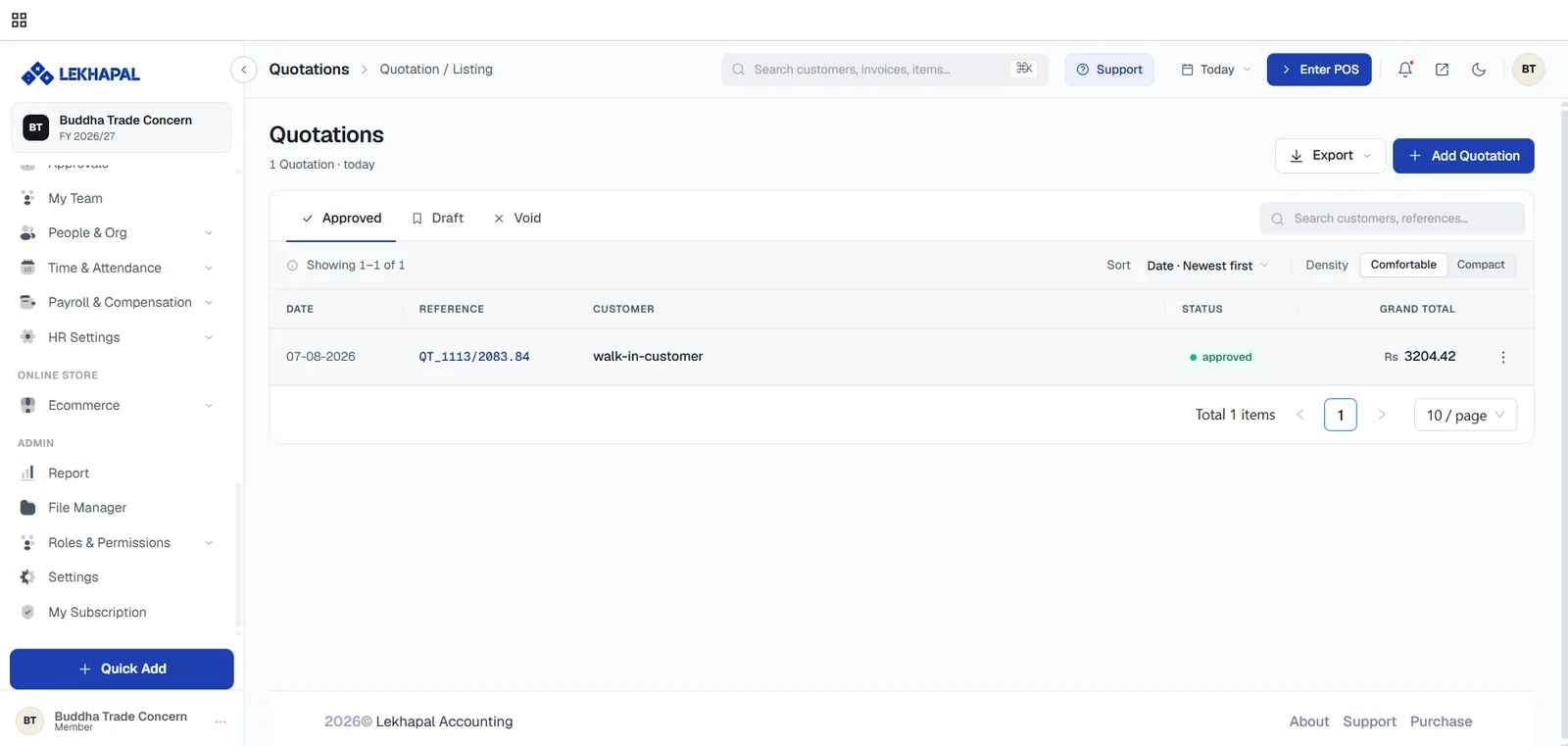
Quotations sit under one of three tabs:
| Tab | Meaning |
|---|---|
| Approved | The customer has accepted it. Ready to convert into a sale |
| Draft | Not finalised — still being edited |
| Void | Cancelled |
Each row shows the date, the reference (for example QT_1113/2083.84), the customer, the status and the grand total.
Create a quotation
- Click + Add Quotation.
- Fill in Customer & Details — customer, date and, if you offer terms, Credit Terms. Use + beside the customer box to create a new party without leaving the form.
- Add Line items. For each product, set the rate, quantity, any per-line discount and the tax. The STOCK column shows what you have on hand, so you can see whether you can actually supply the quantity being quoted.
- Add a Note if there are terms the customer should see.
- Check the Summary — Sub Total, Discount, TaxableTotal, NonTaxableTotal, VAT and GrandTotal.
- Click Submit.
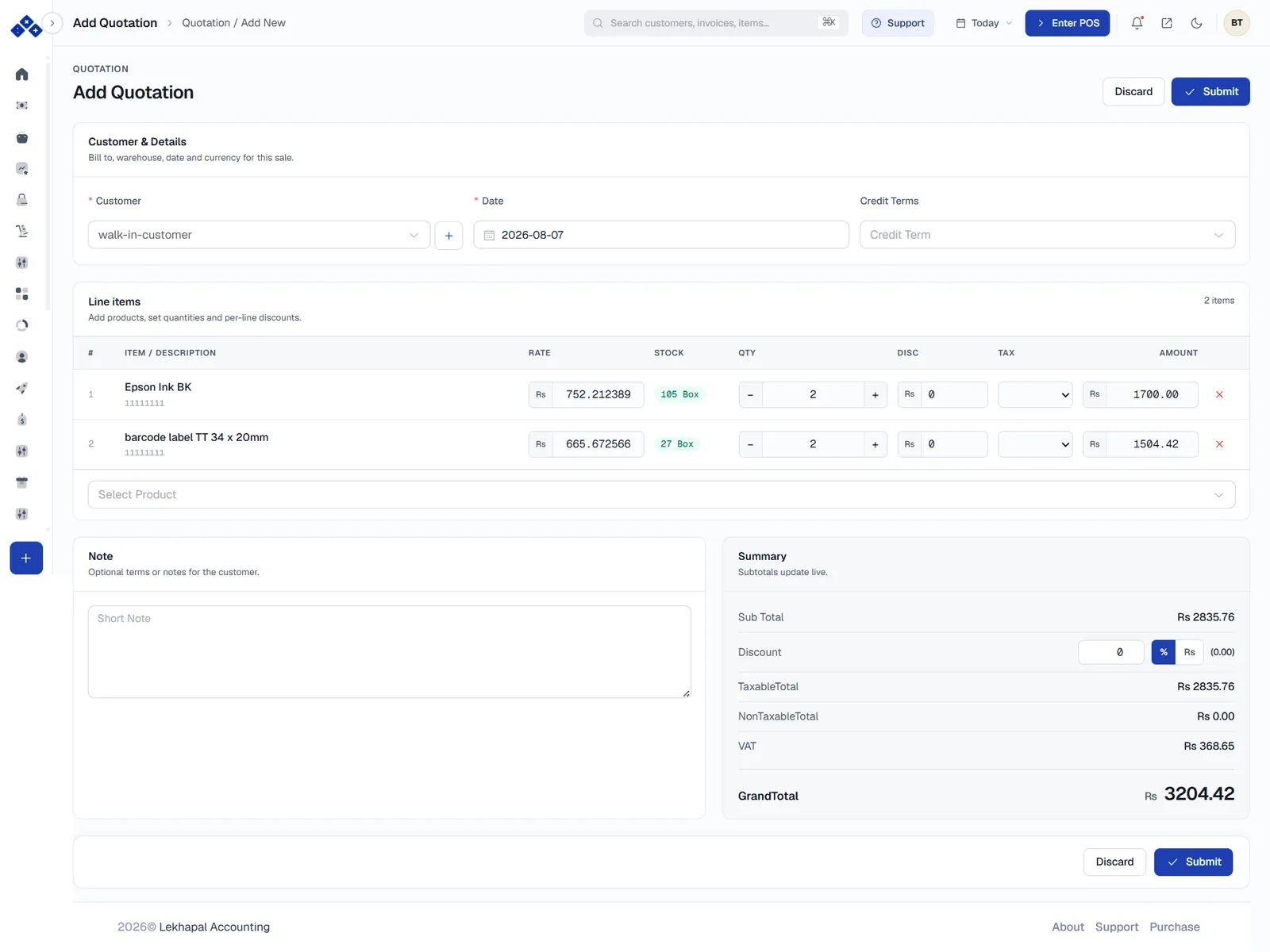
Discount as a percentage or an amount
In the Summary block, the % / Rs toggle switches the document-level discount between a percentage and a flat amount. Per-line discounts are set in the DISC column instead.
What happens next
Once the customer accepts, the quotation is converted into a sales order — or, if you do not use sales orders, directly into a sales invoice. The resulting document keeps a link back to the quotation, so you can always trace where a sale came from.
Example
A customer asks for a price on printer supplies. You raise a quotation for Rs. 3,204.42 covering two line items. The customer accepts, so you convert it into a sales order, and from there into an invoice. Nothing is re-typed, and the invoice still shows QT_1113/2083.84 as its source.